This is what I’ve been using for a while now (I also keep Bibble Pro around). The latest upgrade doesn’t include support for Noise Ninja integration, and thus is not useful to me. Rumor has it that the fault for this lies with Picturecode for refusing to renew the license, not with Corel. Picturecode is now competing directly in this market themselves, with Photo Ninja.
Fuji S2 RAF files are not recognized. Neither are DNG files. And there are no hits for “dng” searching the online help.
Here’s the main editor screen:
Corel Aftershot Pro Main Editor Screen
Specific Issues
Color Management
Aftershot Pro has lost the “working space” setting that Bibble 5 has under “color management”. I can’t tell what the working space is any more.
Straighten
I nearly always use the “draw the line” tool, which is very easy to use.
Example Images
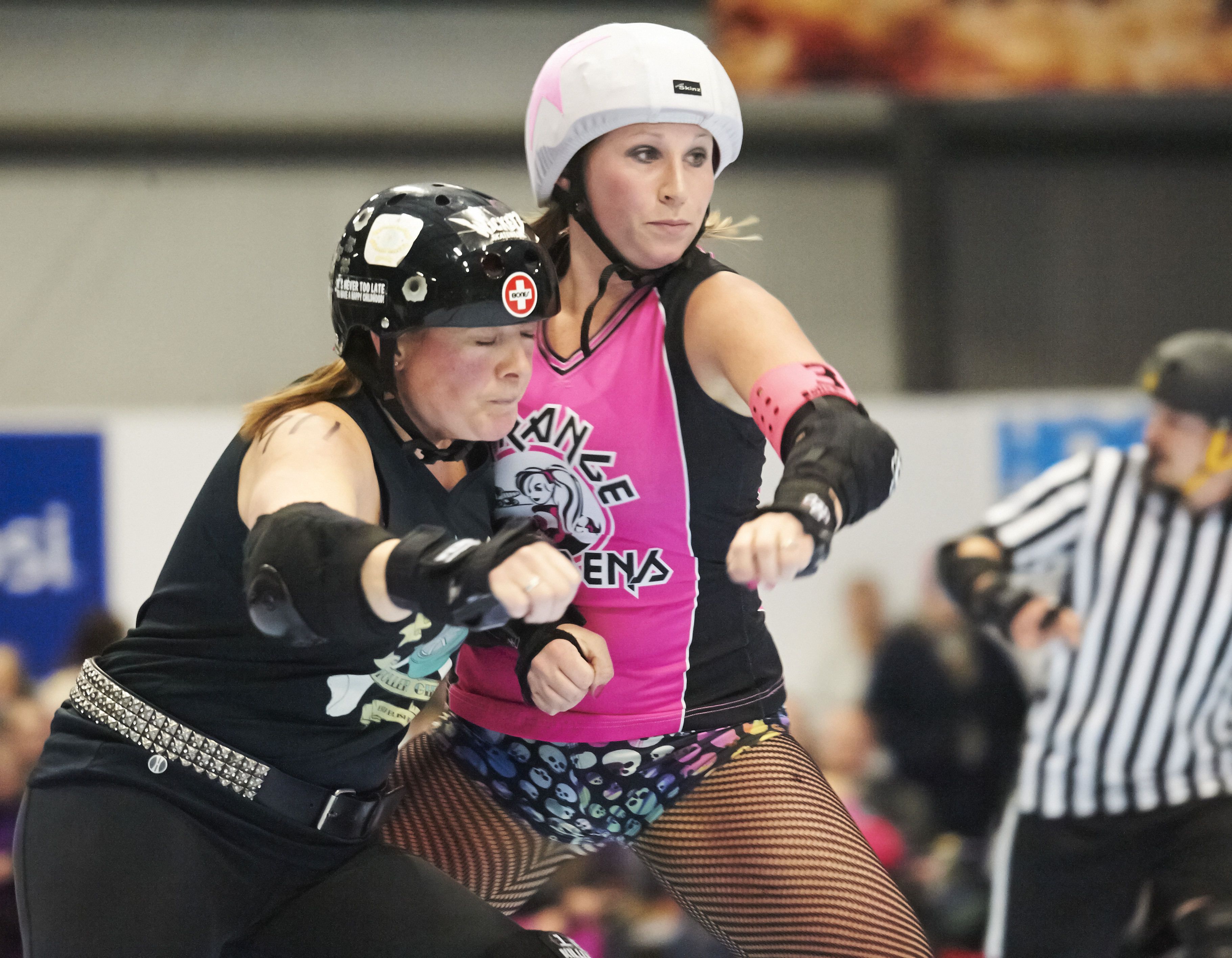
Derby
Click image for full-res version
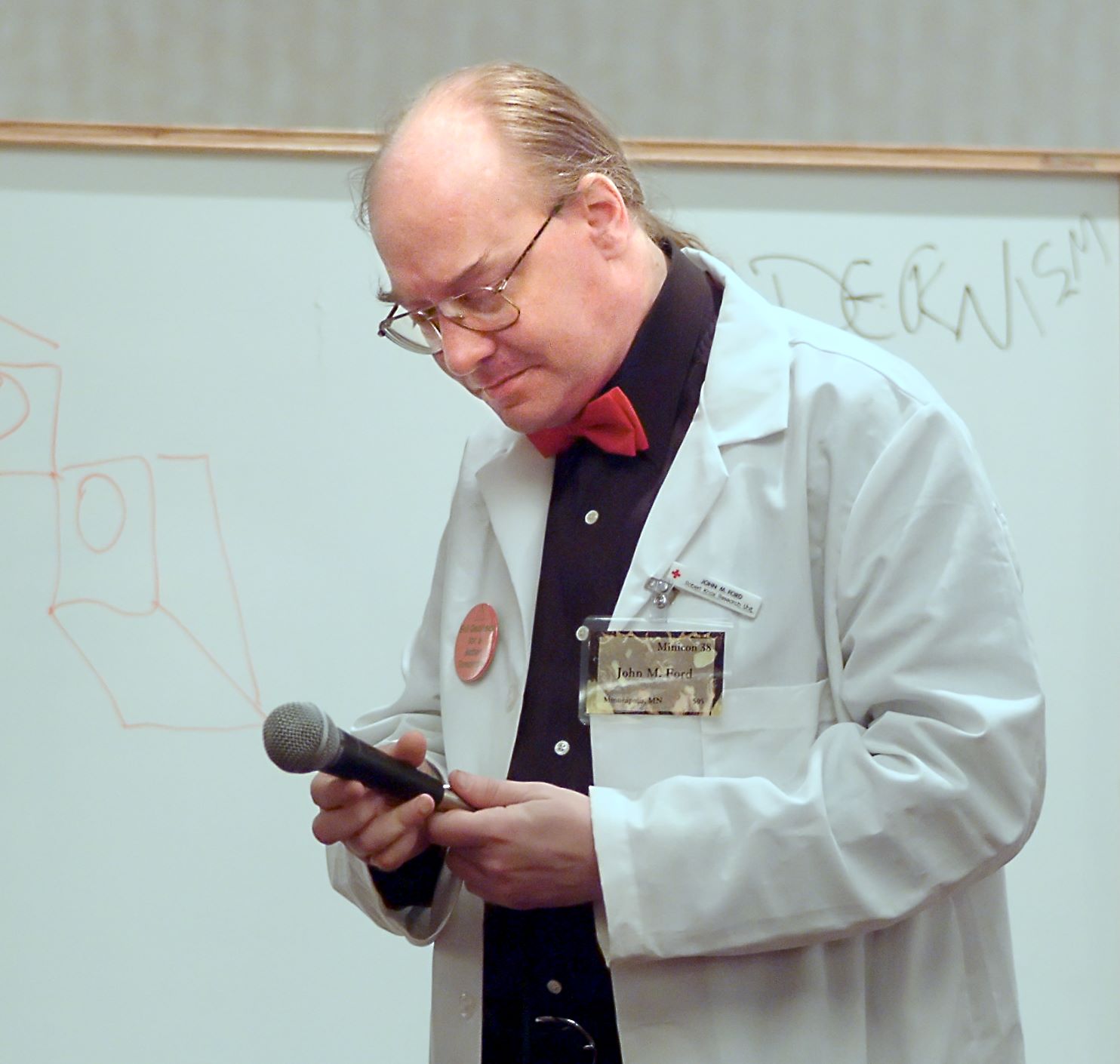
Dr. Mike
Click image for full-res version
Minnehaha
The Fuji S2 RAF raw files (and DNG conversions of them) are not supported in Aftershot Pro.
Naomi
Click image for full-res version
Purple Flower
Click image for full-res version
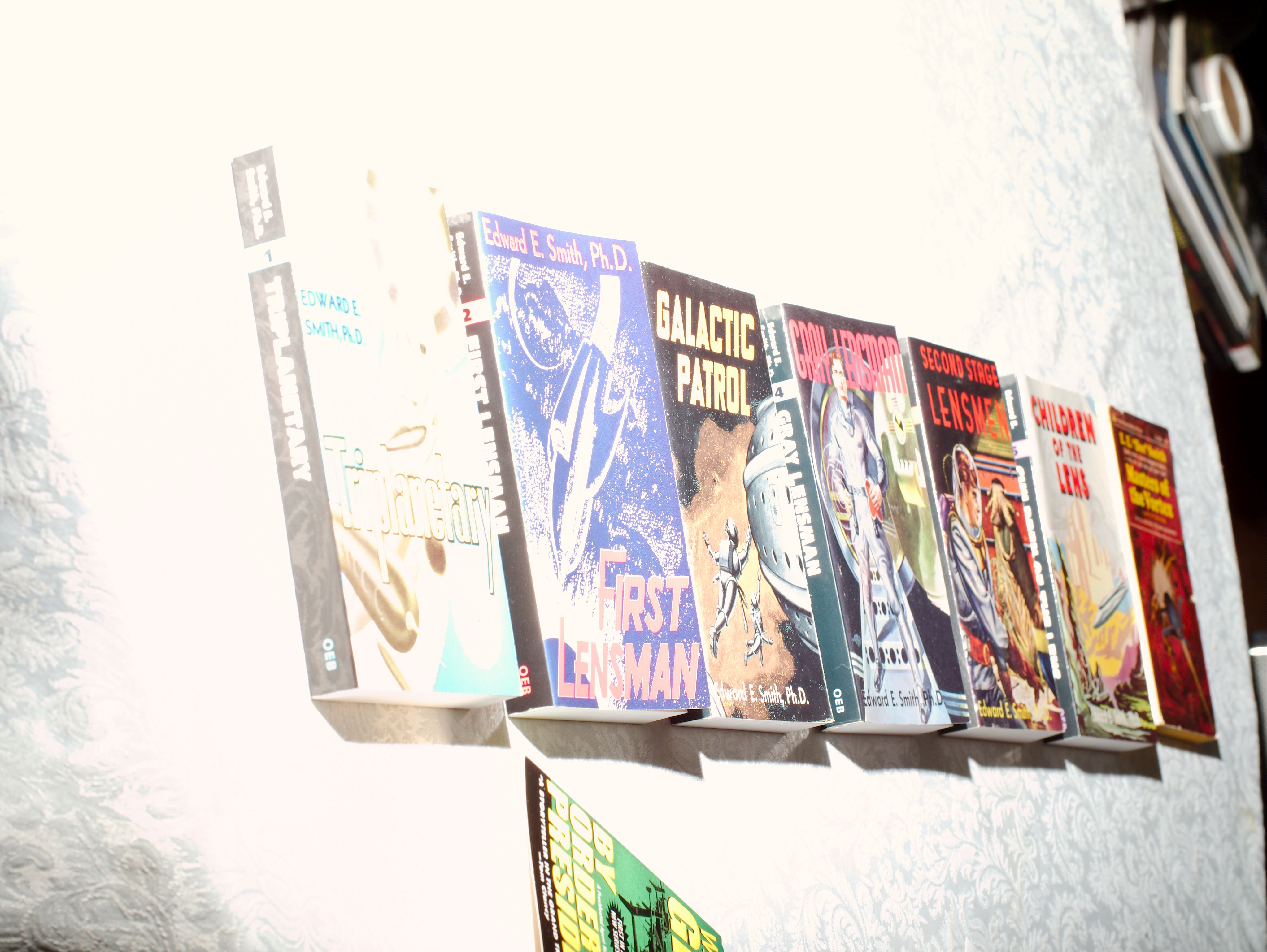
Smith Books
Click image for full-res version
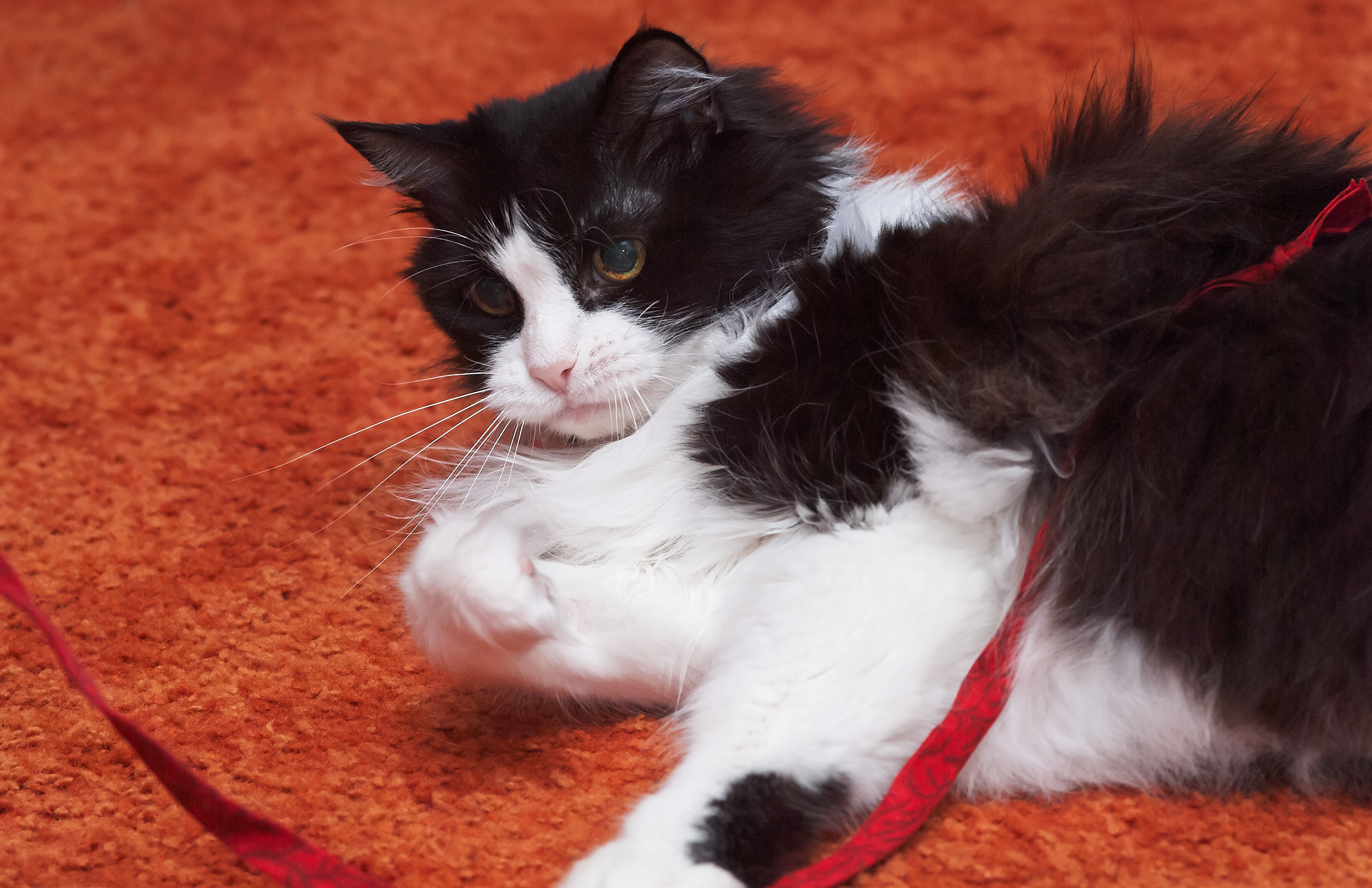
Tux Cat
The Fuji S2 RAF raw files are not supported, even if converted to DNG.
Capture One Pro comes down to us from the medium-format digital world. It was also apparently very widely used in early digital production houses, that went digital using the Kodak digital SLR adaptations of Nikon and Canon bodies. Places doing catalog shots in volume, say, didn’t need the resolution of film, and benefited a lot from the workflow and lack of lab fees.
Specific Issues
Adjustment Layers
They’re easier to draw than in Bibble, but still much harder to work with than Photoshop. I did successfully darken the background of a derby picture using layers.
Histogram
Lines for each color plus a gray region for luminance makes it easy to see all four, and not too gaudy.
No option for logarithmic histogram.
Cropping
The crop tool lets me set grid guide specs.
Focus Mask / Focus Tool
The tool is just a magnified preview window. This is very useful, actually, but the name makes it sound like a bigger deal.
The focus mask shows where the system thinks the image is in focus. This looks good on studio shots in their video; in practical use with my field shots at high ISO it mostly shows that fishnet stockings have higher contrast than faces, I think.
And there does not appear to be a keyboard shortcut for the focus mask. Ah; you can set a keyboard shortcut for any menu command, including that one, there just isn’t one by default.
Curve
The curve tool doesn’t seem to have a way to move the points chosen around using cursor keys, only by dragging.
Screen Layout
This one does have a way to put the film strip or mini-browser or whatever the name is at the side instead of the bottom of the screen (vertical screen real estate being one of the hard limits most people contend with in photo editing).
Example Images
 Derby
Click image for full-res version
Dr. Mike
The noise reduction tools are severely inadequate for this sort of image. Setting everything to absolute max definitely isn’t good enough (nowhere near as good as Photo Ninja’s Noise Ninja 3 can produce). I suspect that the heritage of this tool, studio cameras and lately medium-format ones at that, has left noise reduction as a fairly low priority. Huh; or perhaps there’s something wrong with the preview, the rendered image looks overdone (the one shown here is about half of all the noise reduction settings).
Click image for full-res version
Minnehaha
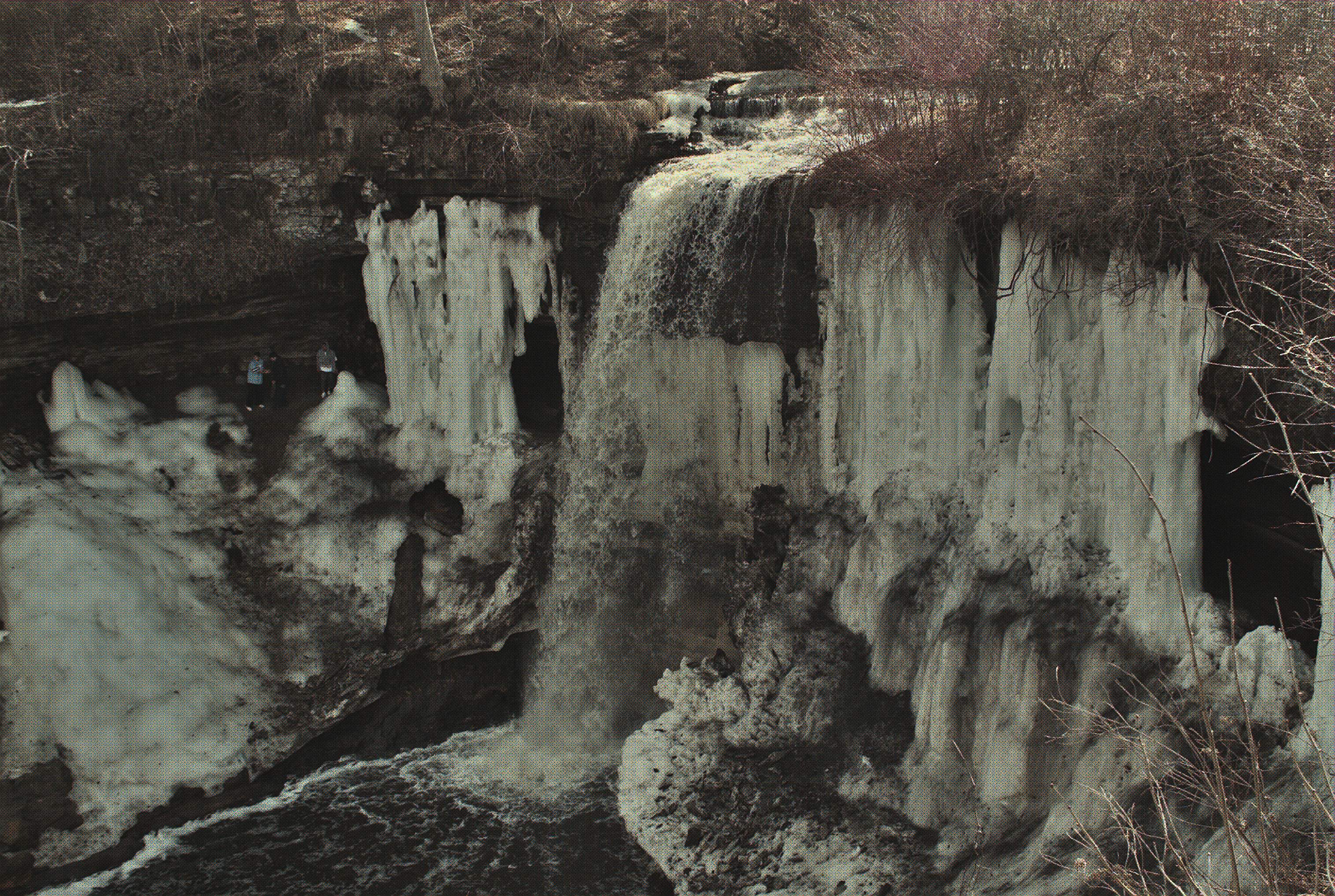
I made some use of masking here, to be able to bring up the shadowed ice on the face without blowing the sunlit water at the top any further.
Photo Mechanic 5 was giving me horrible performance writing to network disk (which is all my disk)—it would take 15 seconds or so to update the rating on a photo, for example. So I was still using version 4 on my desktop (I had switched to 5 on my laptop, where I’m nearly always accessing the local disk).
As I have been doing now and then, I upgraded to the latest V5 today, and ran a quick test—and was very pleased to find that it now updates ratings of photos on network disks quite promptly. Rotation also works fast (that was actually the first place I noticed this problem, back when). (I’m sure I haven’t been hitting every upgrade, this could have been fixed a while back.)
So, kudos and thanks to Camera Bits from me today!
Darktable is a Unix-only free software product. So it’s not available for Windows. My evaluation was done using an Ubuntu Linux installation on a virtual machine. I assigned the VM 4GB of RAM and all 4 CPUs. Darktable makes heavy use of OpenCL (API to access the compute power of graphics cards for general use), which was not installed on my VM. So for a number of reasons I’m pretty sure the responsiveness seen in my tests would be considerably inferior to what one would see on a native Linux installation.
Darktable doesn’t seem to pick up lens or exposure information from the Olympus EPL-2. Images from the Fuji S2 are completely broken, the icy falls picture is mostly diagonal magenta stripes. Tried DNG later, better for EPL-2, not usable (but a visible image) for S2.
Darktable works in LAB space internally, using 4x32bit floating point numbers. (Why four? LAB is still a three-component model, just not the usual three.)
The user manual is notably good, which in my experience is rare for such specialized Open Source software.
Darktable’s basic setup is a stack of processing modules. You can, if you need to, alter the order of modules in the stack. You can also put modules into the stack multiple times, with different parameters.
Many modules support turning on “blending modes”, which mix the output with the input (using one of the myriad modes that GIMP and Photoshop love so much). “Off” means just use the output of the module, which is what some modules are best for. Using blending modes lets you get really lost really quickly, but I think this is something that would reward practice and study, and is very powerful. Mostly the modes blends just one aspect of the imput and output images (like lightness, or chroma, or hue), passing the other through.
If that’s not exciting enough, there’s also “conditional blending”. Module presets can be related to camera, lens, ISO, and exposure setting information. So, theoretically there’s a huge amount of power and control available here. I can say that ordinary editing doesn’t seem to need to call on it, which means you don’t have to hit that learning curve on day one.
There’s a rather interesting specialized bit of UI for slider-controlled number boxes. The mouse wheel works over the slider (which is a small target). Works semi-okay even in remote X running on a virtual machine. And an interesting right-click box that supports both typing numbers AND variable-precision mouse control (not drag-based; you click on the spot, with curves showing you roughly what each spot means).
Here’s the main editing window, with the right-click box open on the exposure slider.
It doesn’t seem that I can change where the filmstrip appears. Since modern monitors are overly-wide and far to short, it’s much better to take required (and I can’t find a way to make it go away, either) space-using elements to the sides, NOT top or bottom. (The basic editing area, when all the overhead is subtracted, needs to be square; otherwise, either horizontal or vertical pictures are at a disadvantage.)
Specific Issues
Crop and Rotate
The “guides” selections give you a wide choice of cropping guides visible during the drag. However, I can’t find a way to get it to do a 5×5 grid for me, which is what I’m currently using most.
Color Balance
Not sure about settings for “white balance” and “input color profile”
and “output color profile”. The model I’m familiar with from Bibble
and Photoshop involves a “working space” and then using the tagged
input space (or specifying if not tagged, but with my cameras that
never happens).
Docs say the white balance module has a “temperature in” slider, but it
doesn’t; it has a “temperature” slider, and tint, and r, g, and b.
And that “temperature” slider seems to run up to 30,000K, an extremely cold color balance.
And things jump around at random a lot, often leaving me with an
intense green color balance.
White Balance
The “flash” preset sets the color temp to 3965K. Daylight is 3556K. Daylight and flash are normally 5500K in the world I come from.
Exposure
The exposure slider has a huge range, going out to 18EV. This makes it very hard to work with. Possibly becoming more comfortable with the right-click features of the slider would help here, however (making the actual slider kind of a secondary control).
Example Images
Derby
Click image for full-res version
I’m pretty happy with the noise reduction here. I may have taken it a small step too far, but it was also interacting with attempts to sharpen the not-quite-perfectly frozen heads.
Dr. Mike
Click image for full-res version
Again, this is primarily a noise reduction problem. This image was shot at ISO 1600 on a Fuji S2 (and saved as jpeg, not raw). The fact that it’s a jpeg original partly explains my not trying too hard to rescue the clipped whites on the shoulder.
Minnehaha
This one is a technical failure. Converting Fuji S2 RAW files, even via DNG, doesn’t work usefully in Darktable. The artifact grid also really messed up the jpeg compression, so even the “full res” version is a rather low quality jpeg file.
Click image for full-res version
Naomi
Click image for full-res version
This image may be too easy to show much. But at least it shows that a good final version can be produced.
Purple Flower
Click image for full-res version
This may be the least successful edit I did with Darktable.
Smith Books
Click image for full-res version.
This worked about as well as anything else at rescuing some of the overexposed areas. (Remember, the overall exposure was such as to guarantee some areas that remain overexposed; thus it looks like crap.)